

Plugins break more WordPress sites than hacks do. Most site owners never see it coming.
If a plugin just broke something on your site, jump to the quick triage section below. It walks you through safe, step-by-step isolation without making things worse.
If you're evaluating a WordPress website maintenance service (or wondering whether your current one is actually doing the job), start with the red flags section and the due-diligence audit. You'll know exactly what to ask and what answers to expect.
Plugins are where most WordPress site maintenance problems actually live. They handle your contact forms, your checkout, your SEO settings, your image compression, your security firewall. They're also the layer most likely to break something, introduce a vulnerability, or quietly degrade your site's performance without anyone noticing until a lead stops coming through.
This article is focused specifically on: how to spot risky plugins before they cause problems, what to do when one breaks something, and what a competent WordPress maintenance provider should be doing, and documenting, every month. For a non-technical look at website maintenance, that post has you covered. You
Click a button here to go directly to that section:
Plugin Not Working in WordPress: A Quick Plugin Triage
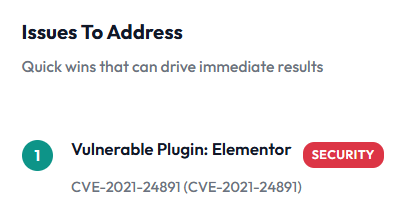
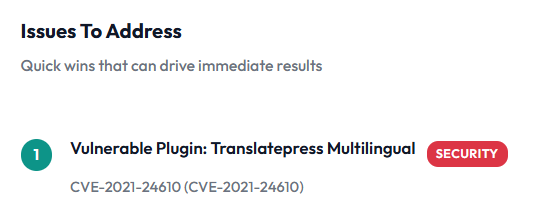
If a plugin is not working in WordPress on your site just stopped working and you suspect a plugin, here's a safe sequence to follow. The goal is to identify the problem without making it worse. This great directory by CVE can help you understand the specifics of your plugin vulnerabilities.
Before you touch anything, confirm a backup exists. If you don't have a recent backup from the last 24 hours, take one now before proceeding. Most WordPress hosts offer one-click backups from the hosting control panel. If your WordPress site maintenance provider handles backups, contact them first and ask them to run the triage with you. Do not skip this step.
Step 1: Check WordPress Site Health
Go to Dashboard > Tools > Site Health in your WordPress admin. This screen flags known conflicts, outdated software, and configuration issues. It won't always identify the specific plugin causing a problem, but it's a fast first read on your site's state and takes about 30 seconds.
Step 2: Try Troubleshooting Mode
If you need to test whether a plugin or theme is causing problems, WordPress includes a built‑in Troubleshooting Mode through the Site Health tools. When activated, it temporarily disables all plugins and switches your admin session to a default theme without affecting what visitors see on your live site. This lets you safely isolate issues and confirm whether a plugin conflict or vulnerability is behind the problem, all while keeping your site online and normal for users. WordPress.com also has a neat walkthrough for troubleshooting plugin vs. theme issues.
Step 3: Switch to a Default Theme
Before isolating plugins, rule out a theme conflict. In Appearance > Themes, temporarily activate a default WordPress theme (Twenty Twenty-Four or similar). If the problem disappears, the issue is in your theme, not a plugin. If the problem persists, your theme is clear and you can move on.
Step 4: Disable All Plugins, Then Re-Enable One by One
In Plugins > Installed Plugins, select all plugins and use the bulk action to deactivate them. Then re-enable them one at a time, checking your site after each one. When the problem returns, you've found the culprit. This shouldn't feel intimidating. A competent WordPress site maintenance service can relieve such stress.
A few important notes on this step:
- Deactivating a plugin temporarily is safe for testing. It does not delete the plugin or its data.
- Do not delete any plugin until you know what it does and have a documented replacement plan in place.
- If your site is completely inaccessible (white screen, 500 error), you may need to rename the /wp-content/plugins/ folder via FTP or your hosting file manager. If you're not comfortable doing that, stop here and call support.
- Some plugins have dependencies. Deactivating one may affect another. Note anything unexpected as you go.
Step 5: Stop Conditions: When to Call Support Instead
Stop the triage and contact your WordPress maintenance provider or a WordPress developer if:
- Your site is fully inaccessible and you cannot reach the admin dashboard
- You see a database connection error or a white screen you can't clear
- The problem involves payment processing, customer data, or a security warning
- You've identified the problem plugin but aren't sure what replacing it involves
- You've made changes and the problem has gotten worse
There's no shame in stopping here. Some plugin conflicts involve code-level interactions that require a developer to untangle safely.
Step 6: What to Collect Before You Call
Whether you resolve it yourself or hand it off, gather this before making contact:
- The exact error message or behavior (screenshot it)
- The name and version of the plugin you suspect
- What changed recently: any updates applied, new plugins installed, theme changes, or hosting migrations
- When the problem started (approximate date and time if known)
- Whether the problem affects all visitors or only certain pages or user types
This information saves significant time and helps your provider get to a fix faster.
Why this matters beyond the immediate fix: Plugin problems are rarely one-off events. If a plugin broke because it conflicted with a WordPress core update, that same conflict pattern will recur unless someone is actively monitoring plugin compatibility as part of ongoing maintenance. The triage above gets you back online. The rest of this article explains how to prevent the next one.
The Short Answer: What WordPress Site Maintenance Covers
WordPress site maintenance is the ongoing work that keeps your site secure, up to date, and functioning the way your business depends on it. Plugins are one part of that, and a disproportionately important one, because they're the most common source of both security vulnerabilities and site-breaking changes.
Where Plugins Fit and Why They're the Highest-Risk Part of Your Site
WordPress plugin is code typically written by a third party. Plugins add the features your site needs: contact forms, checkout, SEO tools, image optimization, security firewalls. But each one also introduces a dependency you don't fully control. If the developer stops maintaining it, if it conflicts with another plugin, or if it ships a bad update, your site bears the consequences.
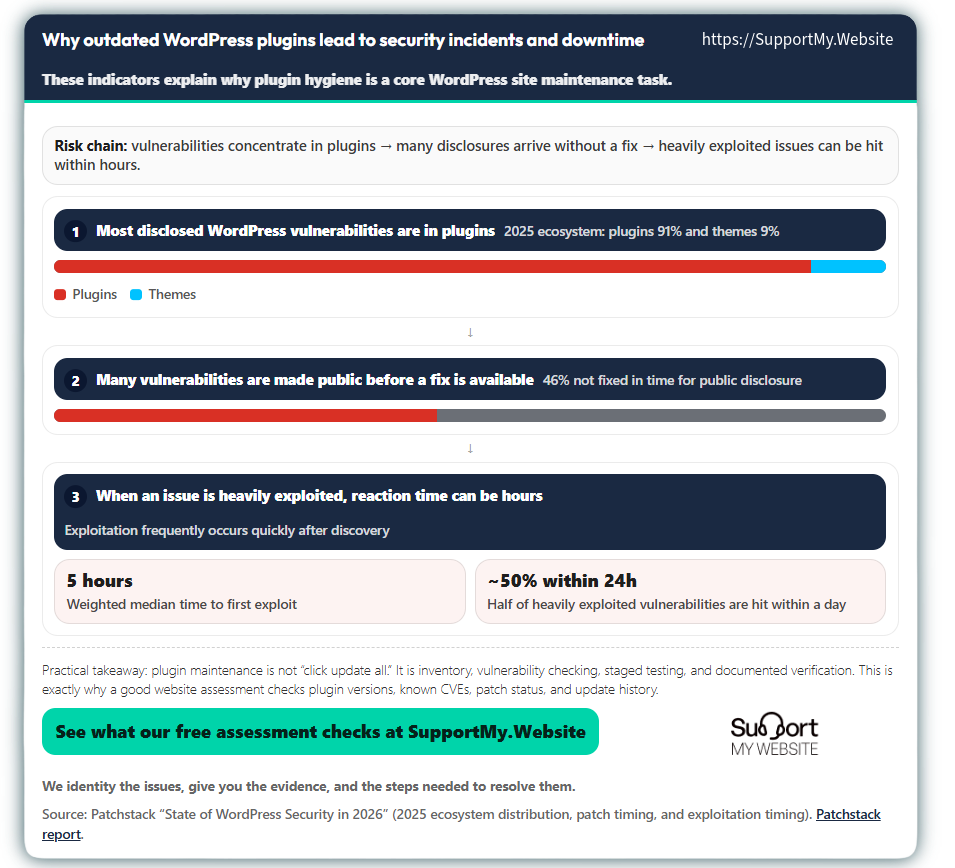
Security researchers at Wordfence and Patchstack consistently show that plugins and themes are the dominant source of WordPress vulnerabilities, not WordPress core itself. You can review current data at wordfence.com/threat-intel/vulnerabilities and in our interactive bar infographic below. The pattern is consistent: when WordPress sites get compromised, the entry point is almost always a plugin or theme, not the core software.
The business impact of that risk is real. A broken contact form means leads disappear silently. A broken checkout means lost sales. A slow or bloated plugin stack hurts your search rankings before you notice anything is wrong. And a compromised plugin can give an attacker access to your site, your customer data, and your hosting account.
This is why plugin management isn't just a technical task. It's a core part of WordPress site maintenance and a core part of running a website that correctly works for business.
Why outdated WordPress plugins lead to security incidents and downtime
These indicators explain why plugin hygiene is a core WordPress site maintenance task.
Practical takeaway: plugin maintenance is not “click update all.” It is inventory, vulnerability checking, staged testing, and documented verification. This is exactly why a good website assessment checks plugin versions, known CVEs, patch status, and update history.
Plugin Safety Check: A Yes/No Screen for Non-Technical Business Owners
You don't have to be a developer to spot potential plugin problems. Your WordPress dashboard shows you most of what you need for a basic safety check. These five questions give you a starting point and a way to have a more informed conversation with whoever manages your site.
Five Questions to Answer Before Trusting Any Plugin
For each plugin on your site, ask:
- Was it updated in the last year? If not, the developer may have stopped maintaining it. Plugins that haven't been updated in 12 months or more carry increasing risk.
- Is it tested with your current version of WordPress? A warning in the plugin details means the developer hasn't confirmed compatibility. That's not always a crisis, but it's a flag worth raising.
- Does it have recent, positive reviews? A pattern of recent negative reviews, especially around bugs or broken features, is worth investigating.
- Are support questions being answered by the developer? Silence in the support forum often means the plugin is no longer actively maintained.
- Does it have a single, clear purpose? Plugins that try to do too many things, or that duplicate what another plugin already does, are more likely to cause conflicts.
What to Do When the Answer Is No
If a plugin raises a concern, don't delete it immediately. Deleting a plugin without understanding what it does can break parts of your site that depend on it. Instead, make a note of what you found and bring it to your WordPress maintenance provider. Ask them to explain why the plugin is there, what it does, and what the plan is if it needs to be replaced.
The right sequence is: disable to test, investigate to understand, replace with a documented plan. Deletion comes last, after you know what you're removing and what's taking its place.
Plugin Risk Score: A Simple Points-Based Rubric
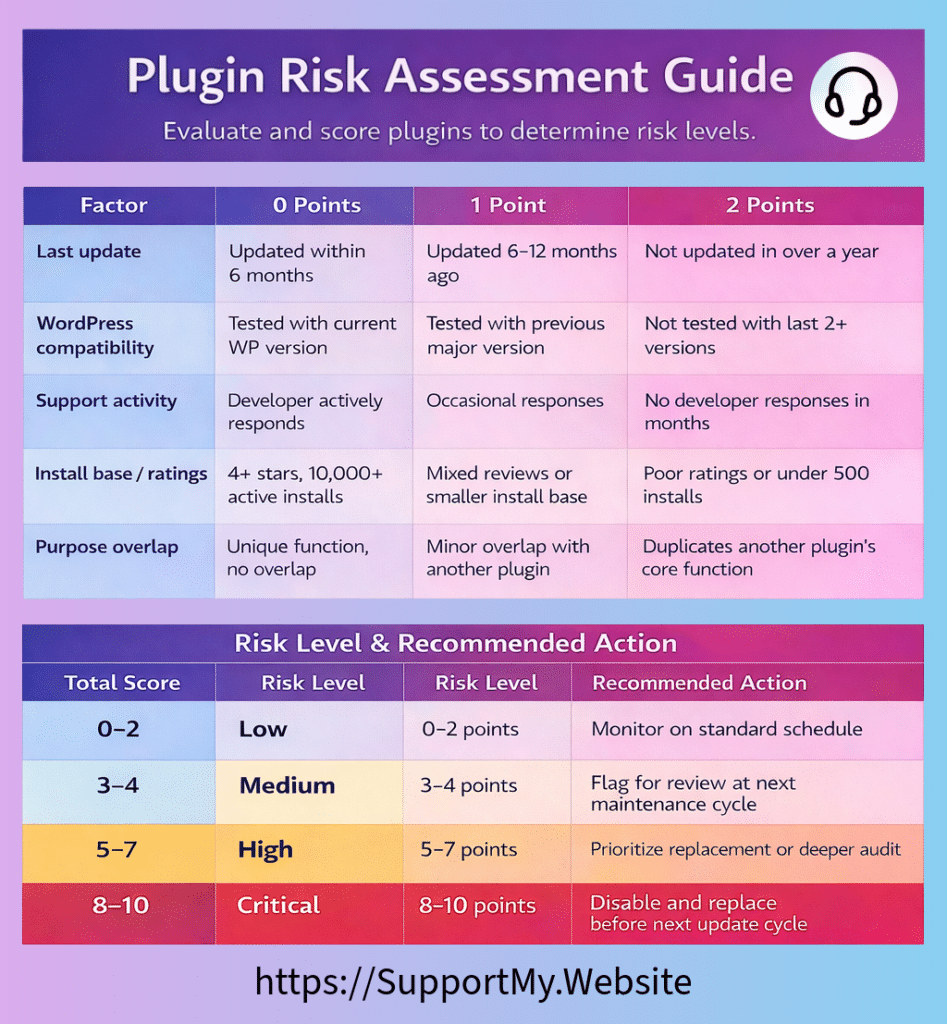
This rubric gives you a consistent way to evaluate any plugin on your site. Score each factor, add up the points, and check the risk band below (the lower the score the better). Share this with your provider and ask them to run it as part of your next plugin audit.
Risk Rubric:
| Factor | 0 Points | 1 Point | 2 Points |
|---|---|---|---|
| Last update | Updated within 6 months | Updated 6–12 months ago | Not updated in over a year |
| WordPress compatibility | Tested with current WP version | Tested with previous major version | Not tested with last 2+ versions |
| Support activity | Developer actively responds | Occasional responses | No developer responses in months |
| Install base / ratings | 4+ stars, 10,000+ active installs | Mixed reviews or smaller install base | Poor ratings or under 500 installs |
| Purpose overlap | Unique function, no overlap | Minor overlap with another plugin | Duplicates another plugin’s core function |
Risk Scorechart:
| Total Score | Risk Level | Recommended Action |
|---|---|---|
| 0–2 | Low | Monitor on standard schedule |
| 3–4 | Medium | Flag for review at next maintenance cycle |
| 5–7 | High | Prioritize replacement or deeper audit |
| 8–10 | Critical | Disable and replace before next update cycle |
We have a convenient Risk Rubric & Scorechart PNG at the bottom of the article for easy sharing and reference during your next plugin audit.
Why Small Business Owners Get Burned by Plugin Problems
Most small business owners who hire someone for WordPress maintenance assume the technical side is handled. They're paying for peace of mind, and that's reasonable. The problem is without knowing what good truly looks like, it's hard to tell the difference.
Some providers run plugin updates automatically without testing anything afterward. Others update the live site directly, skipping staging entirely. If you don't know what to ask for, you can be paying for maintenance every month while your site quietly accumulates risk. A simple PHP problem can cause quite a security headache.
The Real Cost: Lost Forms, Broken Checkout, Slow Pages, Downed Sites
Poor plugin management doesn't usually announce itself. It shows up in the WordPress site maintenance metrics: a contact form that stopped submitting two weeks ago, a checkout that breaks on mobile, a site that's loading three seconds slower than it was six months ago. By the time you notice, the damage has already happened. Don't be one of the thousands (reported by Ars Technica) who were hammered by a WordPress plugin vulnerability.
The most common consequences:
- Lost leads: Contact forms or quote requests stop working without any warning. You don't find out until someone mentions they couldn't reach you.
- Abandoned carts: Shoppers can't complete a purchase because the checkout plugin is broken or conflicting with a payment gateway update.
- Damaged search rankings: A slow or malfunctioning plugin stack hurts page speed scores, which affects how your site ranks.
- Security exposure: An unpatched plugin vulnerability gives attackers a known entry point. Some attacks are immediate; others sit quietly until they're triggered.
Why "We Updated Everything" Is Not Evidence of Safe WordPress Site Maintenance
A report that says "all plugins updated" tells you almost nothing. Clicking update without testing is the fastest way to push a breaking change directly to your live site. The update itself isn't the work. The verification is.
A provider doing this correctly will test updates on a staging environment first, check that critical site functions still work after the update, confirm that backups were taken before any changes were made, and document what they tested and what they found. That documentation is what you should be receiving. Anything less than that is a checkbox, not maintenance.
5 Plugin Red Flags for WordPress Site Maitenance
Most WordPress site problems start with plugins. When there is a plugin not working in WordPress, it isn't updated, or carries a hidden vulnerability, it can quickly turn into downtime or a security breach. Spotting these red flags is the first step in effective WordPress site maintenance.
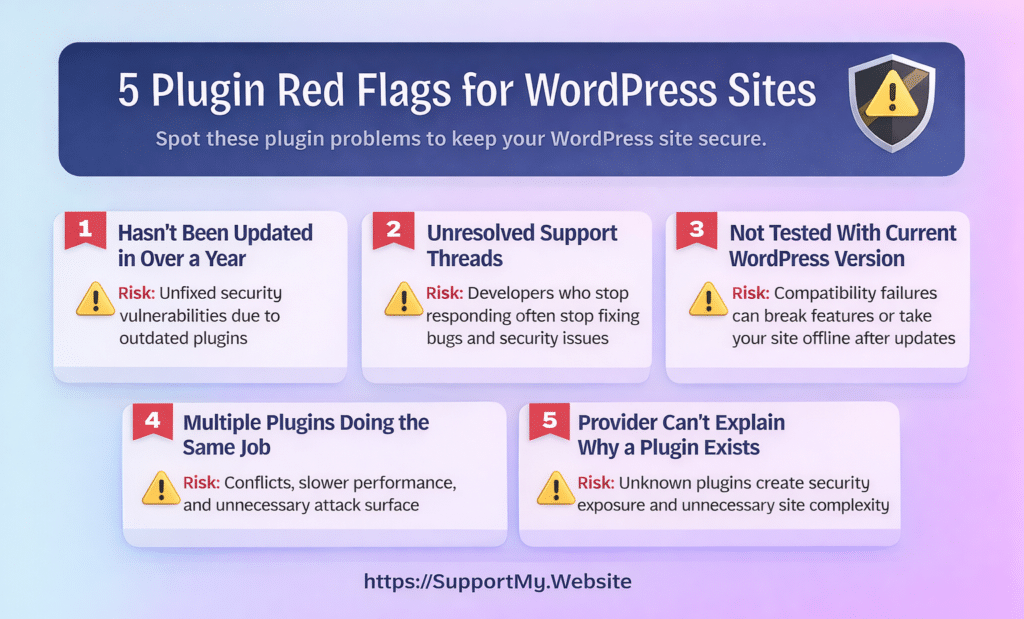
Plugin Red Flag #1: It Hasn't Been Updated in Over a Year
What it is and how to spot it: In your WordPress dashboard, go to Plugins > Installed Plugins and click "View details" on any plugin. The popup shows the "Last updated" date. For premium plugins not in the WordPress repository, check the developer's website for a changelog or version history page. If the last update was more than 12 months ago, that's a flag worth raising.
Why it matters to your business: A plugin that isn't being updated isn't receiving security patches. When a vulnerability is discovered in an unmaintained plugin, there's no fix coming. Security researchers publish those vulnerabilities publicly, which means attackers know about the gap even if you don't. An outdated plugin is an unlocked door that no one is planning to lock.
Security researchers consistently show that plugins and themes, not WordPress core, are the dominant source of WordPress vulnerabilities. Unmaintained plugins are a significant part of that pattern. When there is a plugin not working in WordPress, there is a chance it's been abandoned. The danger shows after you update the rest of your site. You don't want one plugin to keep you from staying up to date with your industry.
What a good WordPress site maintenance provider does about it: They flag outdated plugins during their monthly review, check whether the developer is still active, and identify a replacement if the plugin appears abandoned. They don't just note the problem. They bring you a recommendation and a plan.
What evidence to request: Ask for a plugin audit log that includes the last-updated date for each plugin, any flags raised, and the recommended action for each flagged item. This should be part of your monthly report.
Plugin Red Flag #2: It Has Unresolved Support Threads
What it is and how to spot it: For any free plugin in the WordPress repository, go to the plugin's WordPress.org page and click the "Support" tab. Look at recent threads: specifically whether the developer is responding, whether issues are being marked as resolved, and how long open questions have been sitting without a reply. If threads from weeks or months ago have no developer response, that's a signal the plugin may not be actively supported.
What you're looking for isn't a perfect record. Every popular plugin has bug reports. What matters is whether someone is actively tending to them. Signs of a healthy support forum: the developer responds within a week or two, issues get marked resolved, and the tone of replies is engaged and helpful. Signs of a problem: threads pile up with no replies, or the last developer response was months ago.
Why it matters to your business: An unanswered bug report today can become a security vulnerability tomorrow. When developers stop responding, they've usually also stopped patching. A bug that sat in a support thread for three months without a fix is exactly the kind of gap attackers look for. And if something breaks on your site and you need help, you'll find out the hard way that the support forum is empty.
What a good WordPress site maintenance provider does about it: They monitor the support status of plugins on your site, not just their version numbers. If a plugin's support activity drops off, they flag it for replacement before a problem develops, not after.
What evidence to request: Ask your provider whether their monthly review includes checking support forum activity, not just update dates. If a plugin is flagged for poor support, ask to see the flag in writing and the recommended replacement.
Plugin Red Flag #3: It Hasn't Been Tested With Your Current WordPress Version
What it is and how to spot it: In the "View details" popup for any plugin, look for the "Tested up to" field. This shows the most recent WordPress version the developer has confirmed their plugin works with. If your site is running a newer version of WordPress than what's listed there, you'll often see a warning. That warning means the developer hasn't tested or confirmed compatibility. The plugin may still work, but the risk is unverified.
If a plugin is two or more major WordPress versions behind on its "Tested up to" field, that's a stronger signal that development has stalled.
Why it matters to your business: WordPress releases major updates regularly. When a plugin hasn't been tested against a newer WordPress version, you're running code that may behave unpredictably. Compatibility failures can be subtle (a form field that stops validating, a slider that disappears, an admin setting that no longer saves) or severe, like a white screen that takes your whole site offline. Either way, the failure usually happens at the worst possible time: right after an update.
What a good WordPress site maintenance provider does about it: They check compatibility before applying WordPress core updates, not after. If a plugin hasn't been tested with an upcoming WordPress version, they flag it and test it on the staging site before pushing the core update to your live site. If the plugin fails, they find a replacement before the update goes live.
What evidence to request: Ask for documentation showing that plugin compatibility was checked against the current WordPress version as part of the last update cycle. Staging test notes should reference this specifically.
Plugin Red Flag #4: Multiple Plugins Are Doing the Same Job
What it is and how to spot it: Plugin overlap happens more often than most site owners realize. You might have two form builders installed because a previous developer added one and a later one added another. You might have three plugins each claiming to handle image optimization. You might have a security plugin and a caching plugin that both try to manage certain server-level settings.
Why it matters to your business: When two plugins try to handle the same function, they often conflict. Each one loads its own code, registers its own hooks, and expects to be the authority on that feature. When they collide, you get unpredictable results: forms that submit twice, pages that load slowly because two caching layers are fighting each other, or settings that reset because two plugins are writing to the same configuration. Beyond conflicts, plugin overlap adds unnecessary weight to your site. Every active plugin adds load time, database queries, and complexity. Keeping only what you need, and making sure each plugin has a clear, non-duplicated job, is one of the simplest ways to improve site performance and reduce the surface area for problems.
What a good WordPress site maintenance provider does about it: They run a periodic plugin audit that compares installed plugins against their documented purposes, flags any overlap, and recommends consolidation where appropriate. When a plugin is removed, they document what it was doing and confirm the remaining plugin covers that function completely before anything is deleted.
What evidence to request: Ask for a plugin inventory that lists each plugin's purpose. If a plugin was removed or consolidated, ask for the documented reason and confirmation that the function was tested after the change.
Should Auto-Updates Be On? When It's Safe and When It Isn't
WordPress allows you to enable automatic updates for plugins. It sounds like a reasonable shortcut: updates happen without anyone having to log in and click. The problem is that auto-updates skip the most important part of a safe update process: testing.
An automatic update pushes the new version directly to your live site. If that version has a conflict with your theme, another plugin, or your PHP configuration, your visitors find out before your provider does. For most business websites (anything with a contact form, e-commerce, lead generation, or active traffic), that's an unacceptable risk.
Auto-updates can make sense for simple, low-stakes plugins on personal or low-traffic sites where a brief disruption is acceptable. For anything that affects how customers interact with your business, a tested, staged update process is the right approach. The time saved by automation may not be worth the risk exposure.
Plugin Red Flag #5: Your Provider Can't Explain Why a Plugin Is Installed
What it is and how to spot it: Ask your WordPress maintenance provider to walk you through your plugin list and explain what each one does and why it's there. A provider doing their job well should be able to answer that question for every single plugin, not just the ones they installed. If the answer is "I'm not sure" or "that might have been here before us," that's a problem.
Mystery plugins accumulate over time. A developer installs something to test a feature and forgets to remove it. A previous provider adds a plugin for a campaign that ended two years ago. A plugin gets installed as a dependency for another plugin that was later removed. Without an active inventory, these leftovers pile up.
Why it matters to your business: Every unaccounted-for plugin is a liability. It's adding code to your site, potentially running database queries on every page load, and presenting an attack surface that no one is monitoring if it's outdated. If your provider doesn't know what a plugin does, they won't know what to check after an update, and they won't know what breaks if it's removed. That uncertainty is exactly where problems hide.
What a good WordPress site maintenance provider does about it: They maintain a documented plugin inventory: what each plugin does, why it's installed, and who's responsible for monitoring it. When a plugin is added or removed, that's documented with a reason. When they inherit a site, building that inventory is one of the first things they do.
What evidence to request: Ask for a plugin inventory document. It doesn't need to be elaborate. A simple list with plugin name, purpose, and last-reviewed date is enough. If your provider can't produce this, ask them to build one as part of the next maintenance cycle.
What Your WordPress Site Maintenance Provider Should Be Doing With Plugins Every Month
Good plugin maintenance isn't a one-time task. It's a repeating cycle of review, testing, updating, and documentation. Here's what that looks like in practice, and what you should be receiving as evidence that it happened.
Behind-the-Scenes Checks That Prevent Outages
Before any plugin update touches your live site, a responsible provider runs through a standard pre-update sequence:
- Confirm a recent, restorable backup exists. Not just that backups are scheduled, but that the most recent one completed successfully and can actually be restored. This happens before any changes are made.
- Review changelogs for each update. A changelog tells you what changed: bug fixes, new features, security patches, or breaking changes. A provider who reads changelogs knows what to test. One who doesn't is flying blind.
- Before Updating, run a security scan. Check whether any currently installed plugins have known vulnerabilities. This step catches problems that version numbers alone won't reveal.
- Test updates on a staging site. A staging environment is a private copy of your live site. Updates go there first. If something breaks, it breaks where no one can see it, and it gets fixed before it ever reaches your visitors.
Evidence to Request: Logs, Backups, Staging Notes, Screenshots
You're paying for this work. You have every right to see evidence that it happened. A monthly report that says "all plugins updated" isn't evidence. It's a checkbox. Here's what real documentation looks like:
- Backup confirmation: A log or screenshot showing the exact date and time the backup completed before any updates were applied.
- Update log: A full list of every plugin that was updated, with the version number before and after each update.
- Staging test notes: A brief summary of what was tested on the staging site and what the results were. It doesn't need to be long. Even a few sentences per update cycle is meaningful.
- Security scan results: Output from a security scan showing whether any vulnerabilities were detected and how they were addressed.
The Plugin Maintenance Due-Diligence Audit
Use this table to evaluate what your provider is delivering. A quick audit can indicate a plugin not working in WordPress
| Audit Item | What It Must Document | Accepted Evidence Format |
|---|---|---|
| Backup confirmation | The exact date and time of the last backup, verified before any updates ran, not after | Screenshot of backup completion, plugin log export, or a timestamped line in the maintenance report |
| Plugin update log | Every plugin updated in this cycle: name, version before, version after | Log exported from MainWP, ManageWP, or equivalent; or a formatted list in the monthly report |
| Staging test notes | What was tested on staging post-update, and whether anything broke | Written summary in the monthly report, brief is fine, but vague is not |
| Regression check | Confirmation that core site functions worked after updates: forms, checkout, login, search | Notes in the staging report or a short function-check list with pass/fail results |
| Security scan output | A completed vulnerability scan showing current plugin status and any flagged items | Exported report from Wordfence, Patchstack, or equivalent, attached to or included in the monthly report |
| Rollback readiness | That a rollback procedure is in place and the current backup has been tested for restore | A written statement in the monthly report; restore testing documented quarterly |
| Plugin inventory review (quarterly) | An assessment of the full plugin list for abandoned, redundant, or outdated plugins. A plugin not working in WordPress is often traced back to something flagged here. | Standalone audit document or a dedicated section in the quarterly report |
| Uptime and incident record | Uptime percentage for the period, plus any downtime events with timestamps and how they were resolved | Export from UptimeRobot or equivalent; or a monthly report section covering incidents |
| WordPress site maintenance summary | A high-level record that ties all audit items together for the period, confirming the site was actively maintained and that no open issues were left unresolved | A completed monthly report signed off by the responsible team member |
What Happens When a Plugin Update Breaks Your Site
Even with careful staging and testing, a plugin update can occasionally cause a problem on the live site. Hosting environments differ, caching layers behave differently, and some conflicts only surface under real traffic conditions. This isn't a sign of failure. It's a known risk. What matters is how your provider responds.
A WordPress maintenance provider who is prepared for this scenario will move quickly and methodically. They'll identify the update that caused the problem, roll back to the last confirmed backup, restore your site to its working state, and then investigate the cause in the staging environment, not on your live site.
Backup → Stage → Test → Deploy: The Safe Update Process
The four-step process is straightforward, but every step matters:
- Backup: A full backup of the live site is created and verified before any changes are made. This is the safety net that makes everything else reversible.
- Stage: Updates are applied to a private staging copy of the site, not the live version.
- Test: Key site functions are checked on the staging site after updates are applied: forms, checkout, navigation, login, any custom functionality.
- Deploy: If staging tests pass, the updates are pushed to the live site. If they don't, the problem is resolved on staging first.
This process is not optional for business websites. It's the baseline for responsible plugin management.
What a Good WordPress site Maintenance Provider Does
When something breaks on the live site, your provider should:
- Roll back to the last confirmed backup immediately. This is the priority, not diagnosing the cause first.
- Confirm your site is fully functional before moving on
- Communicate clearly about what happened and what the plan is
- Investigate the root cause on the staging site, not the live one
- Either wait for the plugin developer to release a fix, or identify and test a replacement
Ask your provider to walk you through their rollback procedure before you need it. A provider who can explain it clearly has practiced it. One who can't explain it hasn't.
Questions to Ask Your WordPress Site Maintenance Provider
These questions cut through vague reassurances and get to the specifics of how your site is actually being managed. A good provider answers these without hesitation. If you came here from our WordPress contact article, these questions are great.
Are plugins reviewed for vulnerabilities, not just updated?
The answer should be yes. Updating a plugin and reviewing it for vulnerabilities are two different things. A version update installs the latest code. A vulnerability review checks whether any installed plugins, including ones that haven't been updated recently, have known security issues. Providers who only update are reacting to what developers push out. Providers who also review are actively looking for problems before they become incidents.
This means cross-referencing installed plugins against current vulnerability databases like those maintained by Wordfence and Patchstack, running security scans, and flagging plugins that have disclosed vulnerabilities even if no update is available yet. If a provider can't describe this process, they're not doing it.
Do you test in staging before pushing live?
Yes, without exception, for any business website. Pushing plugin updates directly to a live site skips the only step that catches conflicts before visitors see them. A staging environment is a private copy of your site where updates are applied and tested first. If something breaks on staging, it gets fixed there. When there is a plugin not working in WordPress, your live site and your visitors should not be the test environment.
If a provider tells you they test on the live site because it's "faster" or because the site is "simple enough," that's a meaningful signal about how they approach risk.
Will I receive documented evidence that updates and backups happened?
Yes. Documentation isn't a bonus. It's part of what you're paying for. A monthly report should confirm that backups completed before updates were applied, list every plugin that was updated with version numbers, include staging test notes, and attach or summarize security scan results. If a provider is reluctant to provide this, ask why. The most common reason is that the work isn't being done the way it should be.
Is there a rollback plan if something breaks?
Yes, and they should be able to describe it in specific terms. A rollback plan means: a recent backup exists, it has been verified as restorable, and the provider knows exactly how to apply it if a live-site problem requires it. The process should take minutes, not hours. Ask your provider to walk you through the steps. If they can do that confidently, the plan is real. If they're vague, it probably isn't.
Can you tell me which plugins were removed or replaced, and why?
Yes, and it should be in writing. Any time a plugin is removed, replaced, or deactivated, that change should be documented in your monthly report with a plain-language explanation: what the plugin was doing, why it was changed, what replaced it, and what was tested afterward. This keeps you informed about what's running on your site and why, and it gives you a paper trail if something goes wrong later.
Three Things Every WordPress Site Owner Should Know About Their Plugins
You don't need to be a developer to own a WordPress site responsibly. But a few foundational ideas make it much easier to evaluate the work being done on your WordPress site maintenance so that you can catch problems early.
On Abandoned Plugins and Security Risk
An abandoned plugin is one where the developer has stopped releasing updates, responding to support requests, or maintaining the codebase. WordPress.org flags plugins as closed if they've been pulled from the repository, but a plugin can be functionally abandoned long before that happens, sometimes for a year or more.
The risk isn't hypothetical. When a vulnerability is discovered in an abandoned plugin, there's no patch coming. Security researchers publish those vulnerabilities. Attackers use that information. Your site is exposed until you remove the plugin and replace it with something actively maintained. The longer an abandoned plugin stays on your site, the more likely it is that a known vulnerability exists and is being actively exploited elsewhere.
This is why a maintenance plan that only runs updates isn't enough. Someone needs to be watching for abandonment and acting on it before a vulnerability surfaces.
On the Difference Between Updates and Safe Updates
Running a plugin update and running a safe plugin update are not the same thing. An update installs the latest version. A safe update installs the latest version, verifies it against your specific site configuration, tests it in a staging environment, confirms that key functions still work, and documents the result.
Most plugin problems don't announce themselves immediately. A conflict might only appear when a specific form is submitted, or when a user on a particular browser hits a specific page. Testing catches these before visitors do. Skipping testing means your visitors become the QA process. By the time you hear about it, the damage is already done.
On evidence as the Standard, Not the Exception
The best indicator that your WordPress site maintenance is being done correctly is documentation you can actually read. Update logs, backup confirmations, staging test notes, security scan results: these aren't extras. They're the evidence that the work happened and happened correctly.
If you've never seen documentation like this from your current provider, ask for it. A provider doing the job right will have no problem producing it. If the response is vague or the documentation doesn't exist, that tells you something important about how your site is being managed.
How SupportMy.Website Handles Plugin Safety
At SupportMy.Website, plugin updates are treated as a risk-managed part of routine maintenance, not a quick “click update all” task. We keep WordPress core and plugins updated, test changes in a staging environment before applying them to your live site, and document the work completed so there is a clear record of what changed.
Alongside updates, we run ongoing security monitoring and scanning, maintain backups for recovery, and flag issues that could put reliability or security at risk. When something looks unstable or risky, we recommend the next best step and, when appropriate, help plan a safer replacement path rather than making unexpected changes on your live site.
What You Can Expect Each Month
Each month, you receive a WordPress site maintenance check-in that summarizes work completed, highlights any issues we noticed, and lists recommended next actions. Depending on what was done that month, the summary may include:
- A maintenance summary of updates performed (WordPress core, plugins, theme where applicable)
- Notes from staging testing and any issues found during validation
- Security monitoring and scan notes (for example, items flagged for follow-up)
- Backup and recovery status at a high level
- Any risks or concerns identified, with a recommended action for each (for example, compatibility concerns, performance slowdowns, or plugins that warrant closer review)
What to Expect in Your First 30 Days
When you start with us, one of the first things we do is a full plugin audit. We document every plugin on your site, assess each one against our risk rubric, flag anything that needs attention, and present you with a prioritized list of recommendations. From there, monthly maintenance follows the process described in this article: backup, stage, test, deploy, document.
If you want to understand how much you should pay or get in touch, we'll walk you through it.
Frequently Asked Questions
What's the difference between a plugin update and a vulnerability patch?
A plugin update is any new version released by the developer. It might add features, fix bugs, improve performance, or address a security issue. A vulnerability patch is a specific type of update released to close a known security gap. The distinction matters because not every update contains a security fix, and not every security fix arrives as a standard update. Some vulnerabilities are patched quickly; others sit unaddressed for weeks. A good WordPress site maintenance provider monitors vulnerability databases independently, not just update logs, so they catch security issues even when the developer is slow to respond. If your provider only tracks version numbers, they may miss active vulnerabilities in plugins that haven't released a patch yet.
How do I know if a plugin on my site has a known vulnerability right now?
The most reliable way is to check the plugin against a current vulnerability database. Wordfence maintains a searchable database at wordfence.com/threat-intel/vulnerabilities, and Patchstack maintains one at patchstack.com/database. Both are publicly accessible and updated regularly. You can search by plugin name. Security plugins like Wordfence also scan your installed plugins automatically and alert you when a vulnerability is detected. If you have a WordPress maintenance provider, this check should be part of their monthly process. Ask to see the results.
What should I do if I find a red flag plugin on my site right now?
Don't delete it immediately. Removing a plugin without understanding what it does can break parts of your site that depend on it. The right first step is to disable the plugin temporarily and check whether anything on your site stops working. If nothing breaks, you can investigate a replacement at your own pace. If something does break, you know what the plugin was responsible for, and you can restore it while you find a proper replacement. Document what you find (plugin name, version, what it does, why it's a concern) and bring that to your WordPres site maintenance provider. If you don't have one, this is a good time to get one involved.
Is it safe to have a lot of plugins installed?
The number of plugins matters less than the quality and necessity of each one. A site with 30 well-maintained, purposeful plugins is safer than a site with 10 plugins where three are abandoned and two are doing the same job. That said, every plugin adds code, database queries, and complexity. Plugins you don't need are plugins you're maintaining for no benefit. A good rule of thumb: if you can't explain what a plugin does and why your site needs it, it's worth investigating whether it should be there at all. A periodic plugin audit, reviewing the purpose and health of each installed plugin, is one of the most useful things a WordPress maintenance provider can do.
What does "plugin conflict" actually mean?
A plugin conflict occurs when two or more plugins try to perform overlapping or incompatible functions, and their code interferes with each other. For example, two caching plugins might write conflicting instructions to your server configuration. Two form plugins might both try to load the same JavaScript library in different versions, causing one or both to malfunction. Conflicts can also happen between a plugin and your theme, or between a plugin and a specific version of WordPress. They often surface immediately after an update, which is why testing in a staging environment (where conflicts appear before your visitors see them) is an essential part of safe plugin management.
How often should plugins be reviewed, not just updated?
Updates should happen on a regular monthly cycle at minimum, and more frequently for security patches. But a full review, where you assess each plugin's health, purpose, and continued necessity, should happen at least quarterly. A review goes beyond version numbers: it includes checking support forum activity, verifying compatibility with the current WordPress version, looking for overlap with other plugins, and confirming that every plugin still serves a clear purpose. For a guide to how often each maintenance task should happen, see how often each maintenance task should happen.
Can a plugin break my site even if it's been working fine for years?
Yes, and this happens regularly. A plugin that has been stable for years can break your site when WordPress releases a major core update, when your PHP version is upgraded by your host, when another plugin on your site releases an update that changes how shared functions work, or when the plugin itself releases an update with a bug or breaking change. Stability in the past doesn't guarantee compatibility in the future. This is why ongoing monitoring matters more than initial vetting. A plugin that passed every check when it was installed two years ago may be a liability today if it hasn't kept pace with WordPress core updates. Make sure you properly remove it or it can still cause issues even if its "gone", this is due to it incorrectly "cleaning itself up".
What's the fastest way to tell if a plugin is abandoned?
Check three things: the "Last updated" date in the plugin's WordPress.org listing, the "Tested up to" version compared to the current WordPress version, and the support forum for recent developer activity. If the plugin hasn't been updated in over a year, hasn't been tested with the last two major WordPress versions, and the support forum shows no developer responses in months, it's reasonable to treat it as abandoned, regardless of whether it's been officially closed in the repository. The practical definition of abandoned isn't a WordPress.org label; it's whether anyone is actively maintaining the code and responding to problems. And of course, a plugin not working in WordPress, is also a good sign of abandonment. When a WordPress site maintenance service is proactive, they catch these things.
A Final Note on Plugins and Proof
Plugins are where most WordPress site maintenance decisions actually get made, and where most WordPress maintenance providers either earn their fee or don't. The red flags in this article are things any provider should be catching routinely. The due-diligence audit is what documentation of that work looks like.
If you want to go deeper on the broader maintenance picture, our website maintenance checklist covers everything from backups to performance to uptime monitoring. For context on what overall website maintenance looks like in 2026, that post covers how the landscape has shifted.
Additional Resources
Downloadable infographics for your convenience:
Author:
Jason Long, CEO

Jason Long is the founder and CEO of JHMG and SupportMy.Website. He has 25 years of experience in business building, having led web-based projects across industries from agriculture to healthcare. At JHMG, he works as a SaaS Consultant helping businesses start, build, grow, scale, and exit their SaaS businesses.
Outside of work, he enjoys travel, fitness, community-focused projects, and of course spending quality time with family.
Jason Long’s Linkedin
Website: JasonMLong.me
X/Twitter: @jasonmlong